




Configure Business Central
Configure Dynamics 365 Business Central
Configure how Expensify imports accounting data from Dynamics 365 Business Central and exports reports back to it.
If you haven’t connected Business Central yet, learn how to connect to Business Central.
Once configured, you can:
- Import accounts and items as categories, and dimensions as tags.
- Export reimbursable and company card expenses as general journal entries or purchase invoices.
- Sync automatically, post entries automatically, and write payments back to Business Central.
Where to find Business Central settings
Each workspace has its own Business Central integration. To view or update the configuration settings:
- In the navigation tabs (on the left on web, on the bottom on mobile), select Workspaces > [workspace name].
- Select Accounting.
- Under Dynamics 365 Business Central, select Import, Export, or Advanced.
How to configure Business Central import settings
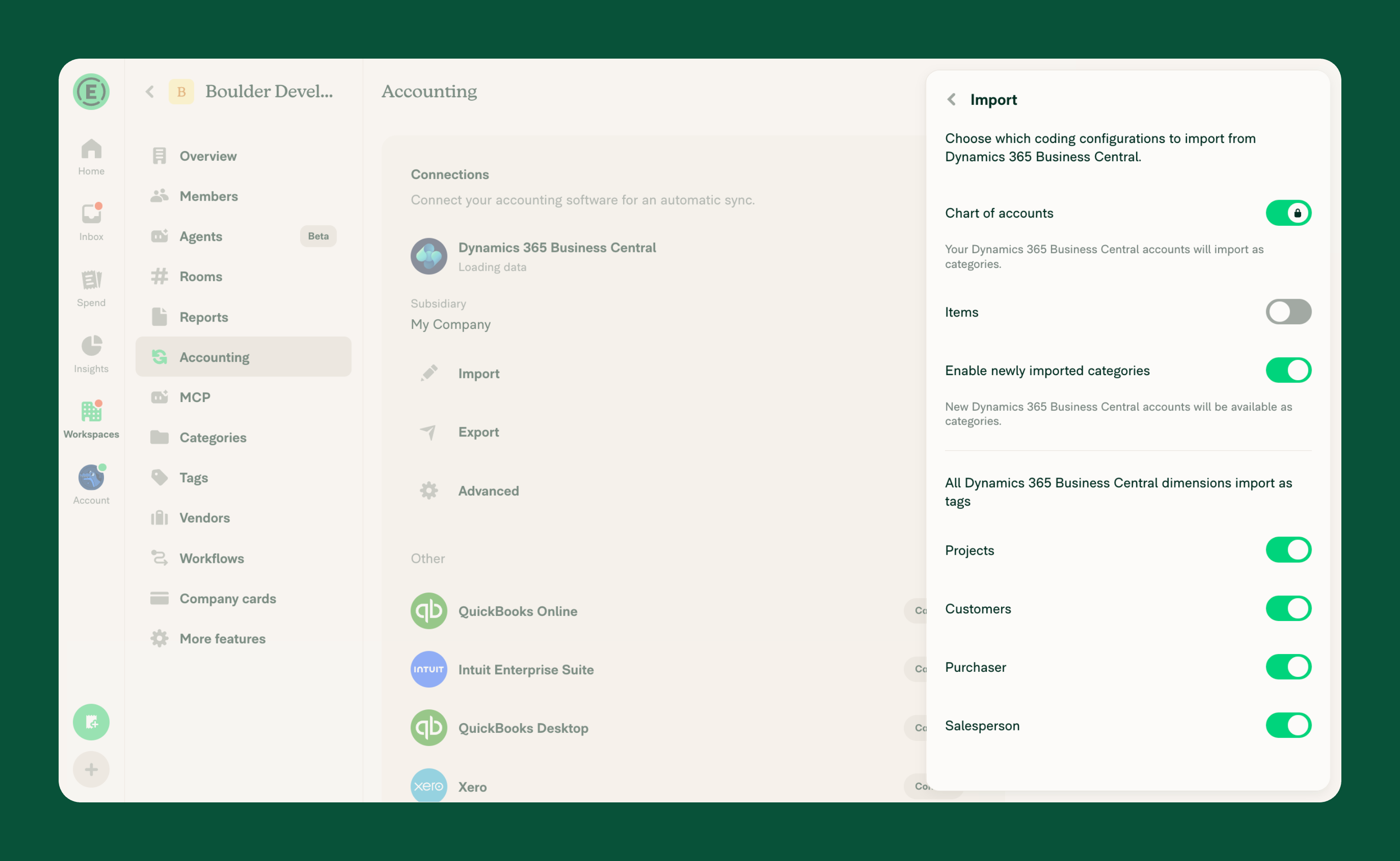
The Import tab controls which accounting data is imported from Business Central into Expensify.
- Chart of accounts – Your Business Central accounts import as categories. Expensify only imports accounts that allow direct posting and aren’t blocked.
- Items – Imports your service and non-inventory items as categories.
- Enable newly imported categories – Makes new Business Central accounts available as categories as soon as they’re imported.
- Projects and Customers – Import Business Central projects and customers as tags. You can only enable these when Purchase invoices is selected on the Export tab in Expensify.
- Dimensions – Each Business Central dimension appears with its own toggle. Enable a dimension to import its values as tags. Dimensions aren’t imported until you enable them.
- Taxes – Imports your VAT posting setups as tax rates. This only appears when your Business Central company has VAT posting setups.
How vendors are matched to Business Central company card expenses
Expensify imports your Business Central vendors and matches each company card expense to a vendor by merchant name. Learn how to manage vendor matching for Business Central.
How to configure Business Central export settings
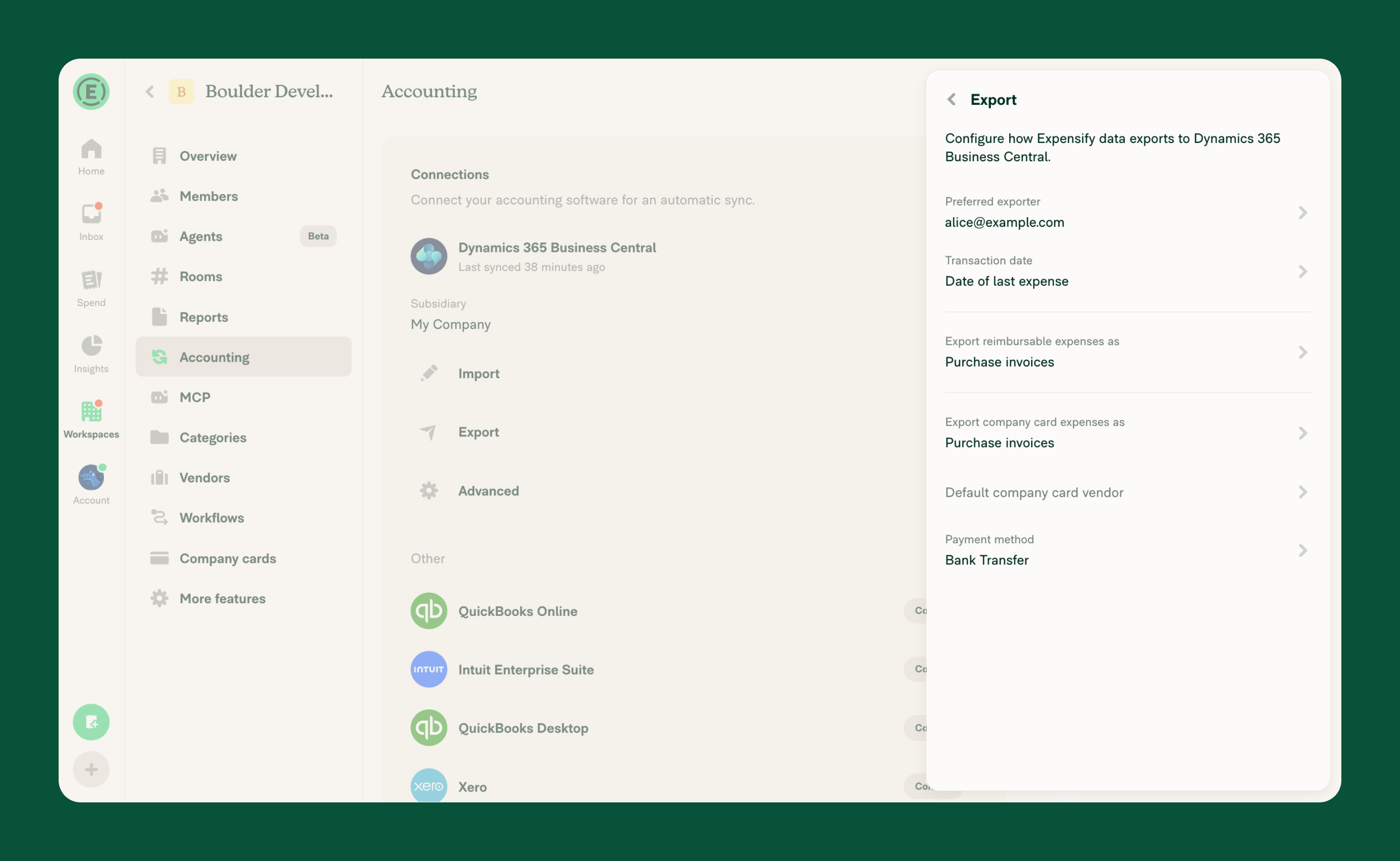
The Export tab determines how Expensify sends data to Business Central:
- Preferred exporter – Choose the workspace admin who receives reports to export. This defaults to the workspace owner.
- Transaction date – Choose Date of last expense, Export date, or Submitted date.
- Export reimbursable expenses as – Choose General journal or Purchase invoices. The default is General journal.
- Reimbursable account – Choose where reimbursable expenses export. This only appears when reimbursable expenses export as General journal.
- Export company card expenses as – Choose General journal or Purchase invoices. The default is Purchase invoices.
- Default company card vendor – Choose the vendor used for company card expenses that don’t match a vendor automatically.
- Company card account – Choose where company card expenses export. This only appears when company card expenses export as General journal.
- Configure exporting to multiple accounts – Export different card programs or individual cards to different accounts. Set Card program account for each program and Per-card account for individual cards.
- Payment method – Optionally choose a payment method for purchase invoices, so Business Central can reconcile them with your bank. This doesn’t appear when both export options are General journal.
How to set a Business Central vendor for a specific card
By default, company card expenses that don’t match a vendor use the Default company card vendor. You can set a different vendor for an individual card:
- In the navigation tabs (on the left on web, on the bottom on mobile), select Workspaces > [workspace name] > Company cards.
- Select the card.
- Under Accounting, select Exports to.
- Select the vendor.
You can set a vendor for an Expensify Card the same way from Workspaces > [workspace name] > Expensify Card.
On export, Expensify uses the card’s vendor first. If the card doesn’t have one, Expensify uses the Default company card vendor.
If you enabled Configure exporting to multiple accounts and company card expenses export as General journal, Exports to sets the card’s account instead of a vendor.
What happens when a report exports to Business Central
When a report exports, Expensify:
- Creates a general journal entry or purchase invoice, based on your export settings.
- Creates a vendor or employee in Business Central if one doesn’t exist yet and Auto-create employees/vendors is enabled.
- Converts foreign-currency expenses to your Business Central company’s base currency.
- Posts the entry automatically, or leaves it for you to post manually, based on your Posting mode.
- Adds a message to the report that links to the record in Business Central.
If Business Central rejects the export, the error appears on the report.
How to configure Business Central advanced settings
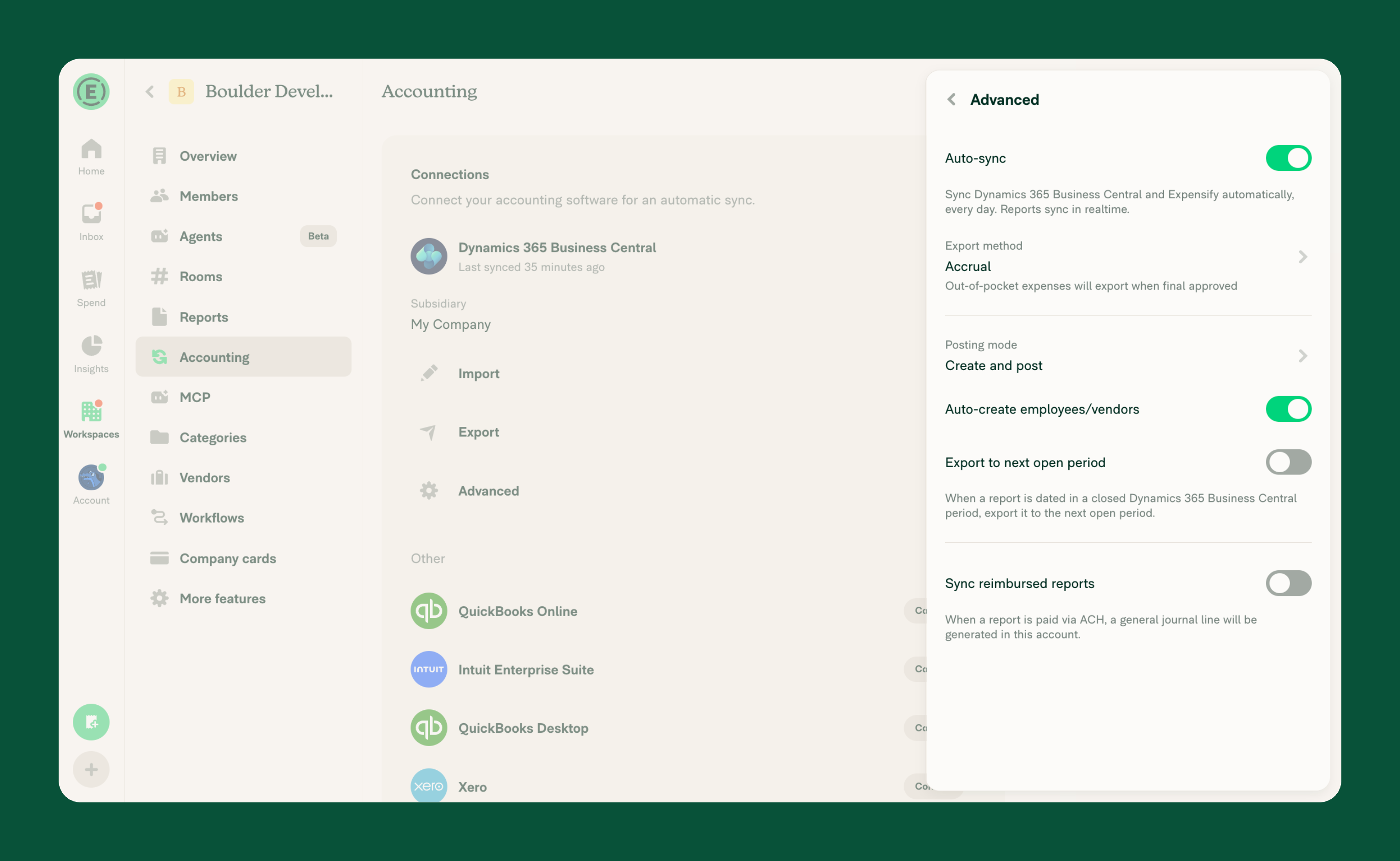
The Advanced tab controls settings like sync frequency, reimbursement, and settlement automation:
- Auto-sync – Automatically sync Business Central and Expensify daily, with reports exported in realtime.
- Export method – Choose when reports export automatically. This only appears when Auto-sync is enabled.
- Accrual exports out-of-pocket expenses when they’re final approved.
- Cash exports out-of-pocket expenses when they’re paid.
- Posting mode – Choose Create and post to post entries automatically on export, or Create only to review and post them manually in Business Central.
- Auto-create employees/vendors – Creates missing employees and vendors in Business Central during export.
- Export to next open period – Exports a report dated in a closed Business Central period to the next open period. This is off by default.
- Sync reimbursed reports – When a report is reimbursed in Expensify, Expensify creates a general journal line in Business Central to close the employee payable. Choose the Payment bank account to pay from.
- Sync Expensify Card settlements – Writes Expensify Card settlements back to Business Central. Choose the Expensify Card settlement account. This only appears when the Expensify Card is set up on the workspace.
When Posting mode is Create and post, Expensify posts every open journal in the General Journal batch chosen during the Business Central extension setup, not just the journals Expensify created. Use a batch that’s only for Expensify.
FAQ
Why is an account missing from my categories?
Expensify only imports Business Central accounts that allow direct posting and aren’t blocked. Update the account in Business Central, then sync the connection.
Why can’t I enable Projects or Customers?
Projects and Customers can only be enabled if at least one export option is Purchase invoices. Change Export reimbursable expenses as or Export company card expenses as to Purchase invoices, then enable them.
Why aren’t my exported entries posted in Business Central?
Check the Posting mode under Advanced. When it’s set to Create only, Expensify creates the entries, and you post them manually in Business Central.
Why did my report fail to export to Business Central?
Business Central checks each export right away and returns an error if something is wrong. Open the report to see the error message, fix the issue in Expensify or Business Central, then export the report again.
Why don’t I see the Expensify Card settlement setting?
Sync Expensify Card settlements only appears when the Expensify Card is set up on the workspace.


