




Connect to Business Central
Connect to Dynamics 365 Business Central
Currently in BETA: Reach out to your account manager or account executive if you are interested.
Connect Dynamics 365 Business Central to your Expensify workspace to sync accounting data. Once connected, Expensify can import accounts, dimensions, vendors, and tax rates from Business Central and export approved reports back to it.
This integration supports Business Central only. To export expenses to Dynamics 365 Finance and Operations or other Microsoft Dynamics products, use a flat-file export instead. Learn more about indirect accounting integrations.
Who can connect to Business Central
To connect Business Central, you must:
- Be a workspace admin with a workspace on the Control plan.
- Have access to a Business Central environment where you can install extensions.
- Have a Microsoft Entra app registration for Expensify, including its Tenant ID, Client ID, and Client secret.
Note: Business Central is rolling out gradually. If you don’t see it under Accounting, it isn’t available for your workspace yet.
What to set up in Business Central before connecting
Before connecting, install and configure the Expensify extension in Business Central.
- Install the Expensify extension from Microsoft Marketplace in your Business Central environment.
- Complete the extension setup, including the journal batch, templates, and number series Expensify will use to create records.
- Note your Business Central environment name, such as Production.
- Copy the Tenant ID, Client ID, and Client secret from the Microsoft Entra app registration used for Expensify.
You’ll need these four values to connect your workspace to Business Central.
How to connect Business Central to Expensify
- In the navigation tabs (on the left on web, on the bottom on mobile), select Workspaces > [workspace name] > Accounting.
- Next to Dynamics 365 Business Central, select Connect.
- On the Before you connect… page, confirm you’ve completed the required Business Central setup, then select Next.
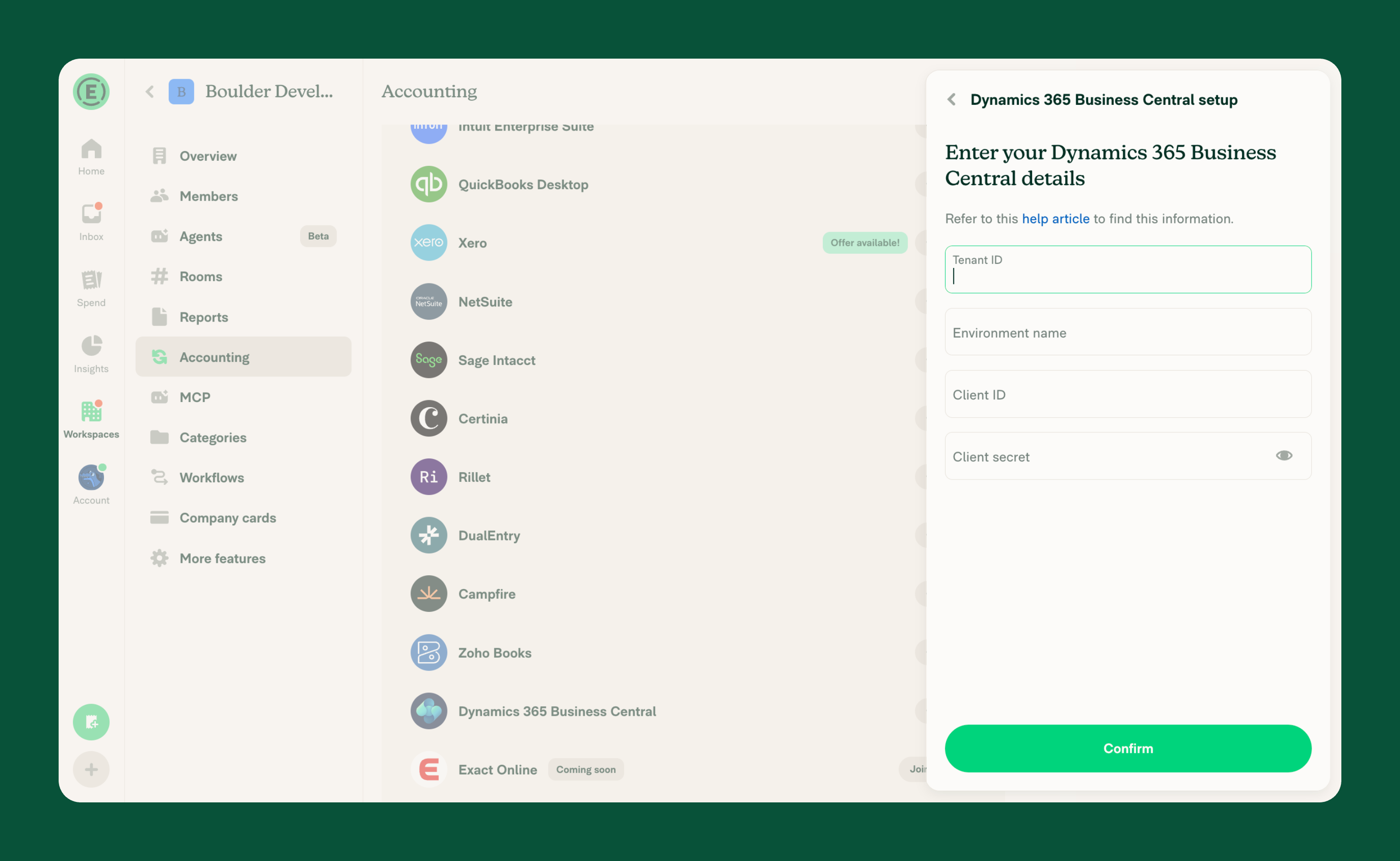
- Enter your credentials in the following fields:
- Tenant ID: Your Microsoft Entra tenant ID.
- Environment name: The name of your Business Central environment, such as Production.
- Client ID: The application ID from your Microsoft Entra app registration.
- Client secret: The client secret from that app registration.
- Select Confirm.
Expensify verifies your credentials and connects to Business Central.
Your Client secret is encrypted and stored on Expensify’s servers. It isn’t displayed in the app or stored on your device.
How to choose which Business Central subsidiary to sync
After connecting, Expensify selects a Business Central subsidiary to sync with your workspace. If your Business Central environment has multiple subsidiaries, you can choose which one to use.
To change the selected subsidiary:
- In the navigation tabs (on the left on web, on the bottom on mobile), select Workspaces > [workspace name] > Accounting.
- Select Subsidiary.
- Choose the Business Central subsidiary you want to sync.
The selected subsidiary appears under Subsidiary on the Accounting page.
What happens after you connect to Business Central
After connecting, Expensify runs the first sync and imports your Business Central accounts as categories.
On the Accounting page, you can see:
- The selected Business Central company under Subsidiary.
- The time of the last sync.
- Import, Export, and Advanced settings for managing the integration.
To customize which data syncs and how reports export, learn how to configure Business Central settings.
How to disconnect Business Central
To stop syncing Business Central with your workspace:
- In the navigation tabs (on the left on web, on the bottom on mobile), select Workspaces > [workspace name] > Accounting.
- Select More (⋮) next to Dynamics 365 Business Central.
- Select Disconnect.
- Select Disconnect again to confirm.
Disconnecting stops syncing with Business Central and removes the connection from your workspace.
FAQ
Why don’t I see tax settings after connecting?
Expensify only displays Taxes when your Business Central company has VAT posting setups.
US companies typically don’t have VAT posting setups, so tax settings may not appear.
How do I fix a Business Central authentication error?
An authentication error may mean your Client secret has expired or changed.
To update your credentials:
- Create a new Client secret in the Microsoft Entra app registration used for Expensify.
- In the navigation tabs (on the left on web, on the bottom on mobile), select Workspaces > [workspace name] > Accounting.
- Select More (⋮) next to Dynamics 365 Business Central.
- Select Enter your credentials.
- Enter your updated credentials, then select Confirm.
Why does the subsidiary picker show “No companies found”?
This message means Expensify couldn’t find a company in your Business Central environment.
Check that your Business Central environment contains a company. If necessary, add one in Business Central.
Then, in Expensify:
- In the navigation tabs (on the left on web, on the bottom on mobile), select Workspaces > [workspace name] > Accounting.
- Select More (⋮) next to Dynamics 365 Business Central.
- Select Sync now to try syncing again.


